Open the page
Click TagChoose, or use its keyboard shortcut. The default is Ctrl+Shift+Y, or Command+Shift+Y on Mac, when available.
LESS FILING. MORE FINDING.
Chrome’s local AI suggests the right bookmark folders. Review the choices, then save one page in every place it belongs.
Get TagChoose for ChromeFree · Chrome local AI · No account
Automatic tagging needs Chrome’s local model. Manual saving works while it downloads or when AI is unavailable. Check compatibility
ONE BOOKMARK. MORE THAN ONE WAY BACK.
Built around the folders you already know.
No separate library to maintain.A SMALLER DECISION
Click TagChoose, or use its keyboard shortcut. The default is Ctrl+Shift+Y, or Command+Shift+Y on Mac, when available.
Let Chrome’s local AI suggest folders, then review them. You can also select folders manually.
Edit the title, review the folders, and save a copy in each chosen location.
INSIDE TAGCHOOSE
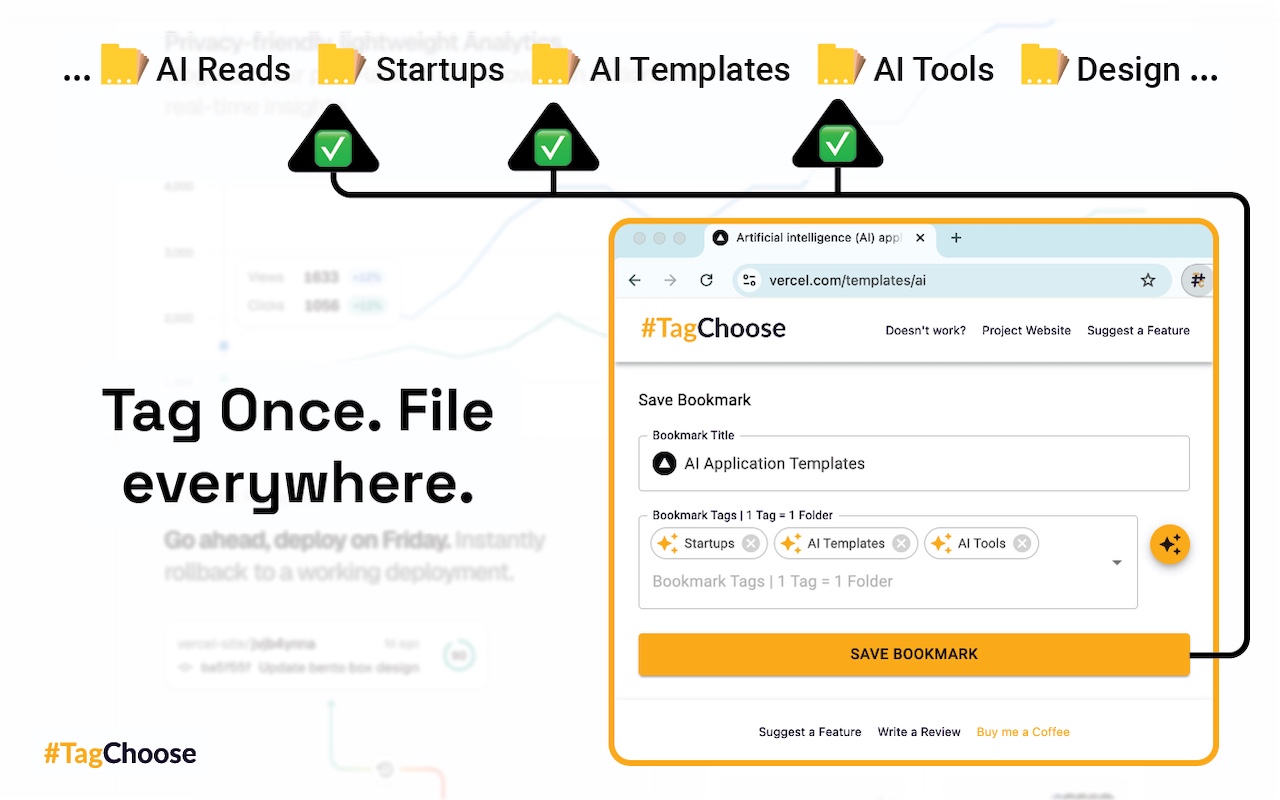
TagChoose saves the page you have open into the Chrome folders you choose. Your bookmarks remain ordinary Chrome bookmarks, so you can use them without keeping a separate app open.
It does not bulk reorganize old bookmarks, read whole pages, or create folders automatically.
How it works under the hood ↗THIRTY SECONDS TO GET THE IDEA
Save a page where you will actually find it again. TagChoose puts one bookmark in all the folders that fit. Choose your folders, or ask private, on-device AI for suggestions. Edit the title. Review your choices. Save. No account. Your bookmarks stay in Chrome. TagChoose. One page. All the right folders.
Automatic tagging uses Chrome’s local AI. Manual saving stays available. The video uses existing Store screenshots.
GOOD QUESTIONS
Yes. There is no account, subscription or API key required to use the extension.
Yes. Choose existing bookmark folders manually and save. Automatic tagging uses Chrome’s local AI and needs a ready model. Manual selection works while it downloads or if it is unavailable.
TagChoose does not send page titles, URLs or folder names to a cloud AI service. Suggestions run on your device. Chrome sync, if enabled, follows your browser settings.
Yes. Each selected folder gets an ordinary Chrome bookmark copy. The copies are separate bookmarks, not a shared tag record.
No. It requires a supported desktop Chrome installation and suitable hardware, storage and model availability. Check the setup guide for current requirements.
FIND IT AGAIN
Give a useful page more than one sensible home.
Keep the organization in the browser you already use.
Understand local processing, downloads and browser sync.
Open, choose and save without hunting through menus.